
How-to
Invite your past clients to rate your services
Invite your past clients to rate your services
You do not have any client’s registered with Rionta when you signed up, but if you are not an entirely new agent, you may have clients you helped already. Rionta functionality allows you to invite your past clients to create review and rating for your profile. The process is easy and takes just several minutes for your clients to complete.
Note regarding Clients vs. Contacts setup: You have 2 sections in your portal dedicated to your pipe-line. All the prospects you work with can be added to the section “Contacts”. This is your general pipe-line. “Contacts” are those individuals whose information you just added into your professional pipe-line to log communication and keep contact information handy. “Contacts” may be or not registered with Rionta portal. Most important CRM pipe-lien functionality are available for you to work with your Contacts.
“Clients” are those individuals who are registered with Rionta, and added you as the TEAM professional. Additional functionality you can use with them are Transactions. Also, only your TEAM clients can review and rate your services.
Ask-To-Rate functionality allows you invite your Contacts to register and rate your services easy. The process of registration and adding you to the contact’s TEAM is automated, so it takes only several clicks.
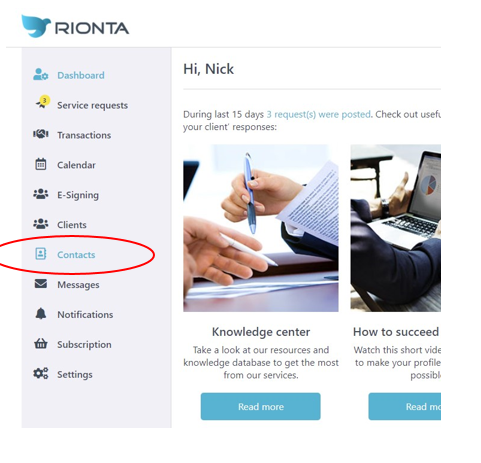
1. Go to your “Contacts” section:
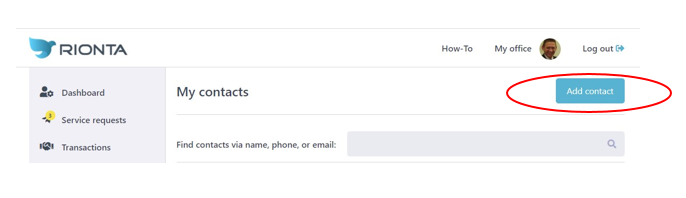
2. Add your past clients using link “Add contact”:
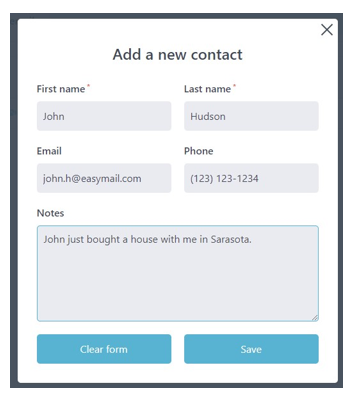
3. Fill out your contact’ information. This information is not shared with anybody and nobody have access to it except for you. When you client accepted invitation and registered, he, or she, will not be able to see the content of your logs and notes, you keep in their file:
4. After you save information about your contact you can access logs, write notes, schedule tasks, invite to register, and ask to rate, etc.:
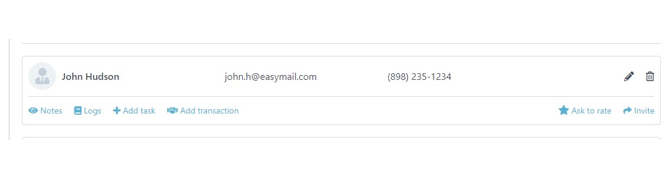
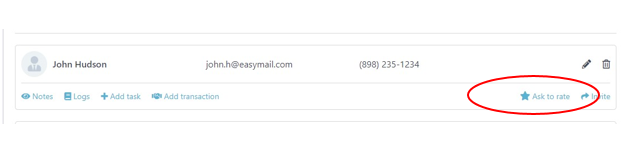
5. Choose “Ask to rate” link to send an automated message:
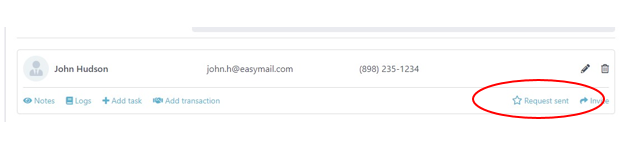
6. When your request is sent you will see confirmation your screen:
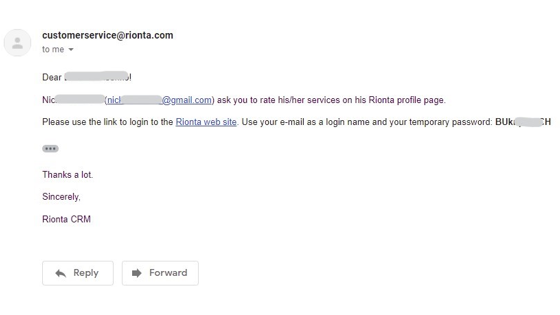
7. You client will receive email from Rionta to rate your services:
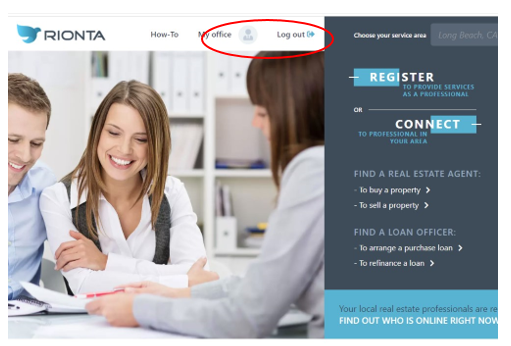
8. Using provided link and password your client will log into Rionta portal – registration is done automatically. When logged to the portal the client should go to “My Office” at the top menu:
9. The form to create a review and rate your services opens automatically with first login:
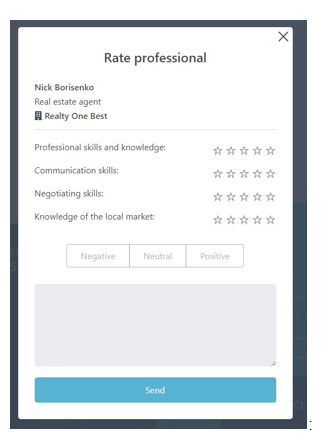
10. If the client did not use the form at the first login, he will be able to access it later using the “Home Team” link to access your information in the list of HOME TEAM professionals:
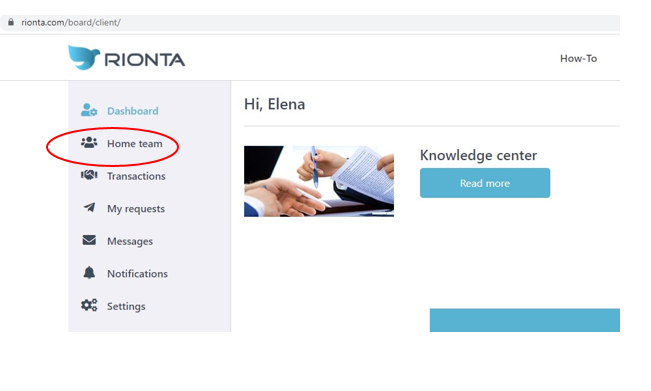
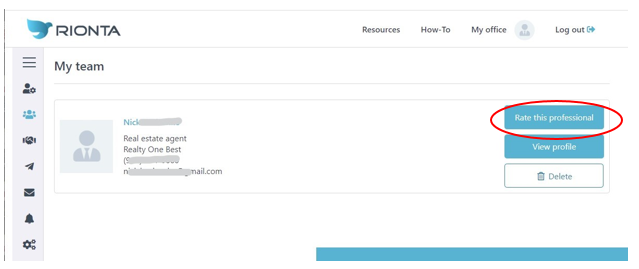
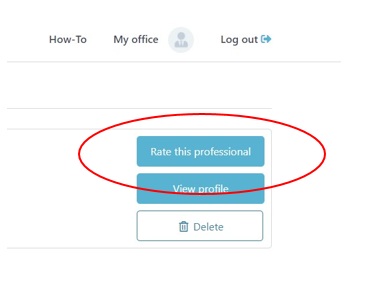
11. To access the review screen again the client will use the link “Rtae this professional:
12. After the review form is completed and save you will have your first rating completed in your profile immediately available for your clients to see:
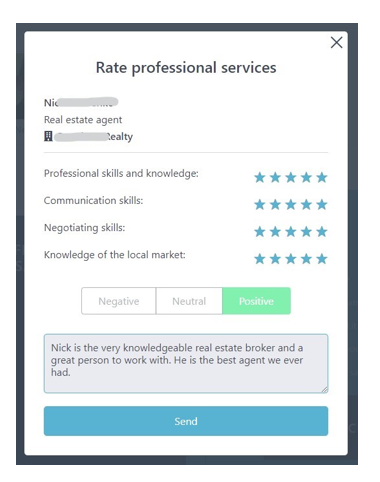
Congratulations! You have your first review from satisfied customer in your Rionta profile.